
This page describes Revolution release 3.1.0.
Search these docs, or ask Revo a question — answers link the pages they came from.
MESO QuickPlex SQ 120
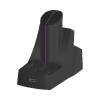 Meso Scale Diagnostics MESO QuickPlex SQ 120 MSD electrochemiluminescence (ECL) multiplex reader.
The MESO QuickPlex SQ 120 is an imaging plate reader from Meso Scale Diagnostics (MSD). It reads MSD’s immunoassay plates by electrochemiluminescence (ECL): each well carries electrodes printed with capture spots, a voltage applied to the electrodes makes the bound labels emit light, and a cooled CCD camera images that light. Because each spot in a well can carry a different assay, one well can measure up to ten analytes from a single sample.
MSD lists the SQ 120 among its previous models and states that an updated version is available: the MESO QuickPlex SQ 120MM. The Revolution driver is named for the SQ 120.
Revolution’s driver retrieves data; it does not run the instrument. It talks to MSD’s Methodical Mind Data Integration Agent (DIA), a Windows service on the MSD instrument computer that hands out, by barcode, the data Methodical Mind holds for plates already read. A schedule can fetch a read plate’s data as an XML file and check that the DIA is reachable. Starting a read, loading a plate and moving anything stay with the instrument and MSD’s software.
At a glance
Section titled “At a glance”| Detection | Electrochemiluminescence (ECL), cooled CCD camera |
| Multiplexing | Up to 10 assays per well |
| Plates | MSD 96-well SECTOR plates and MSD QuickPlex plates |
| Status | Previous model; MSD’s current version is the MESO QuickPlex SQ 120MM |
| Instrument software | MSD’s Methodical Mind software, on the instrument’s laptop (SQ 120MM) |
| Revolution transport | HTTP or HTTPS to the Methodical Mind Data Integration Agent, Windows authentication |
| Revolution control | Data retrieval only — fetch a read plate’s data by barcode, read the DIA version. No read, door or plate control |
Specifications
Section titled “Specifications”MSD publishes no specifications on its SQ 120 page. The figures below are from MSD’s Features and Specifications sheet for its successor, the MESO QuickPlex SQ 120MM (MK-DS-910-v3-2026Mar). They describe the current instrument; confirm with MSD before relying on them for an SQ 120.
| Catalogue number | AI1AA-0 |
| Detection technology | Electrochemiluminescence (ECL) |
| Detection system | Cooled scientific-grade CCD camera and precision custom lens assembly |
| Multiplexing | Up to 10 assays per well |
| Plate compatibility | MSD 96-well SECTOR plates; MSD QuickPlex plates |
| Sensitivity | Limits of detection as low as 0.05 to 1 pg/mL for many assays |
| Dynamic range | Greater than 105 |
| Plate read time | SECTOR plates 1 min 30 s; QuickPlex plates 2 min 45 s (singleplex to 10-spot multiplex) |
| Throughput | SECTOR plates 40 plates/hour; QuickPlex plates 22 plates/hour |
| Plate stacker | 5-plate input stack, 5-plate output stack |
| Operating temperature | 20 °C to 26 °C (68 °F to 78 °F) |
| Operating humidity | 10% to 80% relative humidity, non-condensing |
| Maximum altitude | 2,000 m (6,500 ft) |
| Sound level | 59 dBA |
| Weight | 20.2 kg (44.5 lb) |
| Size (W × D × H) | 33 × 58 × 53 cm (13 × 23 × 21 in) |
| Power | 100–240 VAC, 50–60 Hz, 155 W max |
| Use | For research use only; not for use in diagnostic procedures |
MSD also states the SQ 120MM has no fluidics and needs no daily or monthly user maintenance, and that its footprint is a quarter of the size of MSD’s SECTOR instruments.
The network requirement is worth knowing before the instrument goes on an automation network. MSD states the instrument’s computer must be connected to the network, and that the Methodical Mind software needs an internet connection to the methodicalmind.com domain over HTTPS on TCP port 443.
Supported methods
Section titled “Supported methods”- Get Plate Data — fetch everything Methodical Mind holds for a plate that has already been read,
by its barcode, and save it as an XML file. The file goes in the step’s Destination Folder, or
the device’s Plate Data Folder when the step names none, and is named from the barcode and the
time it was fetched (
<barcode>_yyyyMMdd-HHmmss-fff.xml), so fetching the same plate again never overwrites an earlier copy. The barcode and the saved file’s full path are published to the schedule asQuickPlex.PlateBarcodeandQuickPlex.PlateDataFile - Get Dia Version — ask the DIA for its version and publish it as
QuickPlex.DiaVersion. Nothing is sent to the instrument. Use it to prove from a schedule that the DIA is reachable and accepts the Windows account Revolution runs under
Get Plate Data checks before it sends. The barcode must be given, and one containing /, \,
?, # or a control character is refused, since it could not travel safely as one part of the
request URL. The folder must be a full drive or UNC path on the Revolution host; it is created if it
is missing. These checks also run in simulation, so a schedule that would fail on the real system
fails in simulation too.
What makes the step fail. The step fails, and writes no file, if the DIA cannot be reached or does
not answer within the request timeout, refuses the request, or returns something that is not
well-formed XML. Where the DIA’s answer carries one of the error codes MSD documents for it, the
step’s message explains it: the Methodical Mind database is not running (8704), no plate with that
barcode has been read on this instrument computer (16301), the barcode is locked in Methodical Mind
(16302), the plate was skipped when read (16303), or the DIA failed to get the plate (16305). A refusal
with HTTP 403 means the Windows account Revolution runs under is not in the DIA’s DIAUsers group.
The XML is saved as the DIA returns it. The driver checks only that it is well-formed; it does not interpret it, and the layout of the document is MSD’s.
The file is written beside its final name and then renamed, so a program watching the folder never picks up a half-written file.
What the driver does not do
Section titled “What the driver does not do”- It cannot start a read. The DIA has no command to start a read, open the door, load or eject a plate or move the stacker, so neither does the driver. Every read is started at the instrument, in MSD’s software.
- It cannot tell whether a read has finished, so it cannot wait for one. Get Plate Data fails if Methodical Mind holds no data for the barcode yet, and the timing between the read and that step must be arranged in the schedule.
- It declares no locations of its own. Any location a mover uses to present a plate to the reader is defined in the system configuration, and Revolution treats it as a plain stop on the plate’s route.
- It does not parse results into schedule values; the plate data stays in the saved XML file.
Integration
Section titled “Integration”Revolution talks to the DIA over HTTP or HTTPS, sending two read-only requests: one for the plate data by barcode and one for the version. The DIA authorises by Windows account rather than by key or password: every request carries the Windows credentials of the account Revolution runs under, and the DIA accepts it only if that account is in the DIAUsers group on the instrument computer or its domain. The driver follows no redirects, so those credentials are never passed on to another host.
For HTTPS, the DIA’s certificate is validated normally. If Windows does not trust it — a self-signed certificate, or one not issued for the instrument computer’s name — the certificate’s SHA-1 thumbprint can be set on the device, and that one certificate is then accepted.
Initialising the device asks the DIA for its version. That proves the URL, network, firewall and DIAUsers membership before a schedule depends on them; if it fails, the device does not initialise and the message says why. Uninitialising releases the connection.
In simulation, nothing is sent to the DIA and no file is written. Get Dia Version publishes
Simulation, and Get Plate Data publishes the barcode and an empty file path.
Prerequisites
Section titled “Prerequisites”- The DIA must be installed and its service running on the MSD instrument computer, and reachable from the Revolution host on its port through any firewall. It serves only data that Methodical Mind holds, so the instrument must be run with Methodical Mind.
- The Windows account Revolution runs under must be a member of the DIAUsers group on the instrument computer or its domain.
- Plates must be read at the instrument, under the barcodes the schedule will ask for, before Get Plate Data runs.
Device configuration
Section titled “Device configuration”| Property | Purpose |
|---|---|
| DIA URL | Scheme, host and port of the DIA, such as http://msdcomputer01:8080 or https://msdcomputer01:8001. Must be an http:// or https:// address |
| Request Timeout (s) | How long one request to the DIA may take. Defaults to 60 seconds |
| HTTPS Certificate Thumbprint | HTTPS only, and only when Windows does not trust the DIA’s certificate: the SHA-1 thumbprint of that certificate, which is then accepted. Blank keeps normal certificate validation |
| Plate Data Folder | Where Get Plate Data saves plate XML when the step names no folder of its own. A full drive or UNC path |
If you need more of this instrument driven from a schedule, get in touch — the driver is extended on demand.
Operations
These are available from a Run Device Operation step.
Begin Plate Group
Starts a plate group on the instrument: the plates read until End Plate Group are numbered together in their results. End the group before disconnecting.
Connect
Opens the link to the MSD Remote Instrument service and connects with the device's Windows (and, if set, Methodical Mind cloud) credentials, taking exclusive control of the instrument. Initialise already does this; use this step to reconnect, or to connect with a 2FA code. The Methodical Mind Reader software must be closed on the instrument computer.
| Parameter | Type | Default | Description |
|---|---|---|---|
| 2 FA Code | string | — | Current Methodical Mind 2FA code, only if the cloud account requires one. The code changes with every login, so it is a step parameter, not device configuration. Leave blank when the account does not use 2FA. Initialise connects without a code, so an account with 2FA has to connect with this step instead. |
Disconnect
Releases the instrument from Revolution's control so the Methodical Mind Reader software can be used. Fails if a plate group is still open, keeping the connection so End Plate Group can be run. When Revolution is not connected, it asks the service to release a connection left behind (for example after Revolution stopped without disconnecting), using the device's Windows credentials. Initialise the device or run Connect to take control again.
Eject Plate
Moves the plate carrier out of the instrument so a robot can pick or place a plate, and waits until it is out. Refused unless the instrument is idle.
End Plate Group
Ends the plate group begun by Begin Plate Group.
Export
Exports the last run's data to a file on the instrument computer (or a UNC path it can reach), after setting any export settings given on the step. Settings left blank keep their current values on the instrument.
| Parameter | Type | Default | Description |
|---|---|---|---|
| Export File Name | string | — | Name of the custom export file. Blank keeps the current one. Set on the instrument before the export and kept for later exports. Blank keeps the current value. |
| Export Folder | string | — | Folder on the instrument computer to export to. Blank keeps the current one. A local folder on the instrument computer or a UNC path it can write to; mapped drives are not supported by the Remote Instrument service. Blank keeps the current value. |
| Export Format | string | — | Export format, one of validExportFormats (e.g. both). Blank keeps the current one. The instrument's getItem validExportFormats lists the names it accepts. Blank keeps the current value. |
| Export Mode | string | — | separate or append, one of validExportModes. Blank keeps the current one. separate writes a new file for every export; append adds to one file, which is how several plates are combined. Blank keeps the current value. |
| Custom Export Format | string | — | Custom export format to use, as named in the DISCOVERY WORKBENCH Export Format Editor. Blank keeps the current one. Set on the instrument before the export and kept for later exports. Blank keeps the current value. |
| Naming Convention | string | — | Export file naming convention, one of validNamingConventions (e.g. MSD Barcode). Blank keeps the current one. Export fails with error 9557 until a naming convention has been set once. Blank keeps the current value. |
Generate Report
Writes an MSD diagnostic service report to a file on the instrument computer, for MSD support.
| Parameter | Type | Default | Description |
|---|---|---|---|
| Report File | string | — | Full path on the instrument computer to write the service report to. Written by the Remote Instrument service on the instrument computer, so the path is resolved there - a local drive or a UNC path that computer can write to, not a mapped drive. Only the serviceReport report is supported. |
Get Dia Version
Asks the MSD Data Integration Agent for its version and publishes it as ${QuickPlex.DiaVersion}. A quick way to prove from a schedule that the agent is reachable and accepts the Windows account Revolution runs under; nothing is sent to the instrument.
Get Item
Reads a Remote Instrument configuration item and publishes its value as ${QuickPlex.ItemValue} and ${QuickPlex.<item name>}.
| Parameter | Type | Default | Description |
|---|---|---|---|
| Item Name | string | — | Name of the Remote Instrument configuration item, e.g. returnToInput. Writable items: customerBarcode, customerBarcode2, customExportFormatFile, exportFileName, exportFilePath, exportFormat, exportMode, manufacturerBarcode, namingConvention, plateLayout, returnToInput. Read-only: supportsReturnToInput, validExportFormats, validExportModes, validInstrumentNames, validNamingConventions, validPlateLayouts. Names are case-sensitive. The value is published as ${QuickPlex.ItemValue} and as ${QuickPlex.<item name>}; list items come back separated by |. |
Get Plate Data
Fetches all the data Methodical Mind holds for a plate that has already been read, through the MSD Data Integration Agent, and saves it as an XML file. The step fails if the barcode is unknown, locked or skipped on the instrument, or if the agent cannot be reached. The barcode and the saved file's path are published as ${QuickPlex.PlateBarcode} and ${QuickPlex.PlateDataFile}.
| Parameter | Type | Default | Description |
|---|---|---|---|
| Plate Barcode | string | — | Barcode of the plate whose data to fetch, as Methodical Mind recorded it. The plate must already have been read on the instrument, since the agent only returns data Methodical Mind holds. A barcode containing /, \, ? or # is refused before anything is sent. |
| Destination Folder | string | — | Folder to save the plate XML in. Blank uses the device's Plate Data Folder. A full drive or UNC path on the machine running Revolution, created if it is missing. The file is named from the barcode and the time it was fetched, so an earlier copy of the same plate is never overwritten. |
Get Results Xml
Fetches the XML results of the last plate read from the Remote Instrument service and saves them to a file on the machine running Revolution. The saved file's path is published as ${QuickPlex.ResultsFile}. Fails if no results are available or they are locked.
| Parameter | Type | Default | Description |
|---|---|---|---|
| Destination Folder | string | — | Folder to save the results XML in. Blank uses the device's Plate Data Folder. A full drive or UNC path on the machine running Revolution, created if it is missing. The file is named from the plate's MSD barcode and the time it was fetched. Fails with 9580 if the plate's results are locked - use Unlock Plate first. |
Get Status
Reads the instrument's status and publishes its state (not ready, idle, busy, stopped, paused or not connected to an instrument) as ${QuickPlex.InstrumentState} and the full status XML as ${QuickPlex.StatusXml}.
Initialize Instrument
Initialises the instrument and waits until it finishes. Initialise already does this after connecting; use this step to recover the instrument after an error.
Is Ready To Run
Asks the instrument whether it can read a plate now and publishes the answer as ${QuickPlex.ReadyToRun}, optionally waiting until it is ready - for example while the camera cools.
| Parameter | Type | Default | Description |
|---|---|---|---|
| Wait (s) | int | 0 | How long to wait for the instrument to become ready. 0 checks once. The instrument is not ready while it reaches an equilibrium condition such as cooling its camera. With a wait, the step polls until it is ready and fails if it is not by the end; with 0 it only publishes ${QuickPlex.ReadyToRun} as true or false. |
Raise Error
Makes this device report a failure on demand: the step fails with an error naming the device, and the operator is offered the usual error recovery choices. No command reaches the instrument and nothing moves, and the failure is raised in simulation as well as on a real system, so this is the step to use when rehearsing how a schedule handles a device failure.
Reboot Instrument Computer
Restarts Windows on the MSD instrument computer using the device's Windows credentials. Refused while a plate is being read. The connection is lost; initialise the device again once the Remote Instrument service is back.
Retract Plate
Pulls the plate carrier (with or without a plate) into the instrument and waits until it is in. Refused unless the instrument is idle; make sure the robot is clear of the carrier first.
Run Plate
Reads the plate in the instrument and waits until the read finishes, optionally setting the plate layout first. The plate's MSD barcode is published as ${QuickPlex.ManufacturerBarcode}; when a results folder is set, the results XML is saved there and its path published as ${QuickPlex.ResultsFile}.
| Parameter | Type | Default | Description |
|---|---|---|---|
| Plate Layout | string | — | Plate layout to read with, one of validPlateLayouts. Blank keeps the current layout. Set as the plateLayout configuration item before the read. Usually the instrument sets the layout itself from the MSD plate barcode; error 9553 means no layout was set because the barcode could not be read. |
| Results Folder | string | — | Folder to save the run's results XML in. Blank uses the device's Plate Data Folder. A full drive or UNC path on the machine running Revolution, created if it is missing. Blank here and on the device saves no file - then fetch the results with Get Results XML or Export before the next run, because the next run replaces them. |
Set Item
Sets a Remote Instrument configuration item, such as returnToInput, plateLayout or customerBarcode.
| Parameter | Type | Default | Description |
|---|---|---|---|
| Item Name | string | — | Name of the Remote Instrument configuration item, e.g. returnToInput. Writable items: customerBarcode, customerBarcode2, customExportFormatFile, exportFileName, exportFilePath, exportFormat, exportMode, manufacturerBarcode, namingConvention, plateLayout, returnToInput (only if supportsReturnToInput is true). Names are case-sensitive. A value the instrument reads from the plate itself overrides the one set here. |
| Value | string | — | Value to give the configuration item. Sent as text; for returnToInput use true or false. Cannot contain | or a line break. |
Shutdown Instrument Computer
Shuts down Windows on the MSD instrument computer using the device's Windows credentials. Refused while a plate is being read. Someone has to power it on again before the instrument can be used.
Stop Run
Stops the plate read in progress at the next convenient point and waits until it has stopped. Only possible while the instrument is busy.
Unlock Plate
Unlocks plate results that the instrument locked because it could not read or accept the plate's barcode, using the barcode given. Fails if the instrument does not unlock them.
| Parameter | Type | Default | Description |
|---|---|---|---|
| Plate Barcode | string | — | The MSD barcode of the plate whose results are locked. Results are locked when the instrument could not read or accept the plate's barcode. The step fails if the instrument rejects the barcode (5406, 5407), it was already used (5408) or the plate is already unlocked (5410). |